
Beyond the app
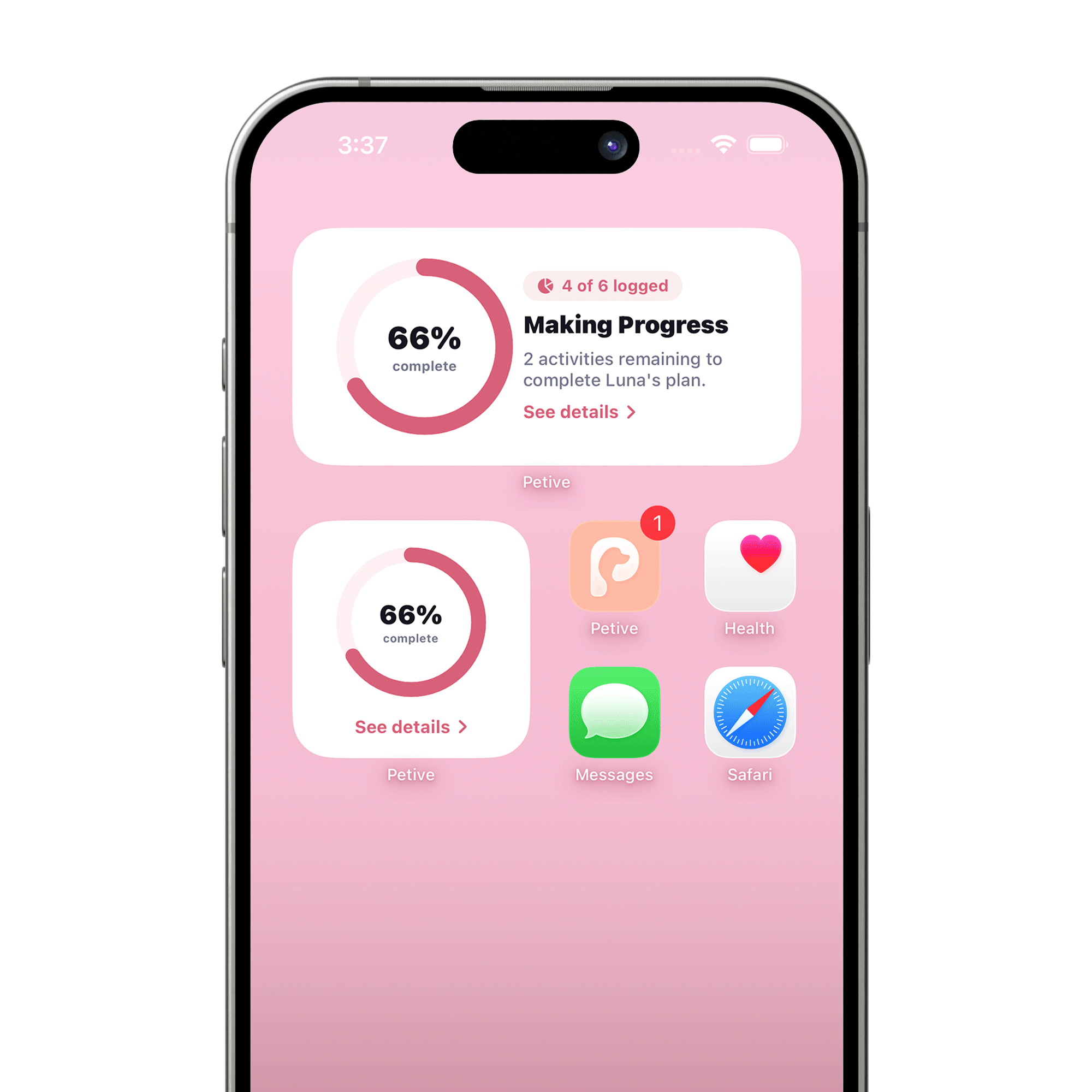
Add Petive widgets to iPhone
Use iPhone’s widget editor, find Petive, choose Pet Pulse, Care Board, Household Day, or Lock Screen Care, then configure the pet when prompted.
Before you start
- Open Petive and add at least one pet before configuring a widget.
Steps
Open the iPhone widget editor
Touch and hold an empty Home Screen area, tap Edit or the add control, then choose Add Widget. For Lock Screen widgets, customize the Lock Screen and select its widget area.
Find Petive
Search for Petive in the widget gallery.
Choose a widget
Choose Pet Pulse for a photo-first next-care glance, Care Board for one pet’s progress and supported logging actions, Household Day for multiple pets, or Lock Screen Care for the next need.
Configure and place it
Select the pet or household option when prompted, place the widget, and tap Done.
What happens next
The chosen Petive widget shows current care context and opens the relevant Petive destination when selected.
Good to know
- Widgets update from the latest Petive snapshot and may not change instantly while the app or device is offline.
- Medication is not available as a one-tap widget log; open Petive for the deliberate medication flow.
Troubleshooting
The widget says to add a pet
Open Petive, confirm a pet profile exists, then return to the widget editor and configure the widget again.