
Stay on time
Create a care reminder
Open Settings, choose “Daily Reminders & Push Alerts,” open “Shared Care Schedule,” then use “Add care time” to choose the activity, time, repeat pattern, and optional instructions.
Before you start
- Allow Petive notifications on the iPhone that should receive the alert.
Steps
Open reminder settings
Open Settings & Preferences, then choose “Daily Reminders & Push Alerts.”
Open Shared Care Schedule
Choose “Shared Care Schedule,” then select the intended pet when more than one is available.
Tap Add care time
Choose the activity, give the reminder a clear name, and select the date or time.
Choose how it repeats
Set Repeat to Once, Daily, Weekdays, or Interval. Selected weekdays and interval hours or days are available when those patterns are chosen.
Add instructions and save
Add an optional care note. Medication entries can store caregiver-entered dose wording and instructions, but Petive does not calculate or recommend doses. Tap “Save.”
What happens next
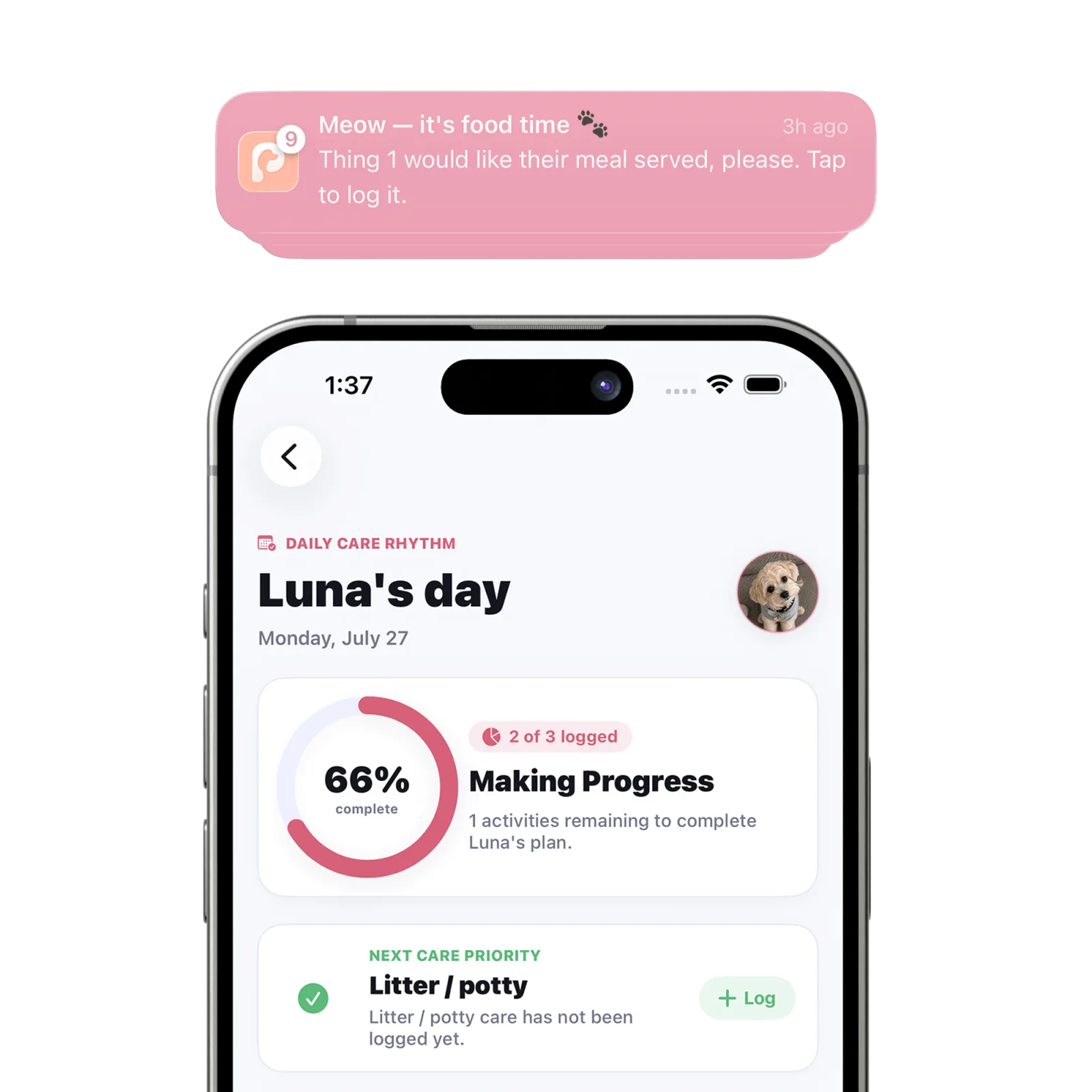
The new care time appears in Care Schedule and Petive schedules eligible device-based notifications.
Good to know
- Notification delivery depends on iOS permission and the settings of each device.
- Interval schedules accept a caregiver-entered number of hours or days from 1 to 30.
Troubleshooting
The reminder saves but no alert arrives
Follow the notification troubleshooting guide and confirm the routine is active.