
Begin here
Set up your first pet
Choose “Set up a new pet” during onboarding, answer the short profile and routine questions, then create or sign in to your Petive account to keep the profile.
Before you start
- Install and open Petive on an iPhone.
- Have the pet’s basic profile details ready. You can refine them later.
Steps
Choose Set up a new pet
On the “How do you want to use the app?” screen, choose “Set up a new pet.” Use “Join a Care Team” instead if someone already sent you a Shared Pack invite.
Answer the setup questions
Follow the prompts about your main goal, your pet, and the care routine you want Petive to show. Only enter details you are comfortable storing in the app.
Choose daily care activities
Select the activities that belong in this pet’s daily plan. These choices drive the progress shown on Today and can be changed later.
Review permissions
Petive explains optional permissions before iOS asks for them. Notification and camera access are only needed for the features that use them.
Finish account setup
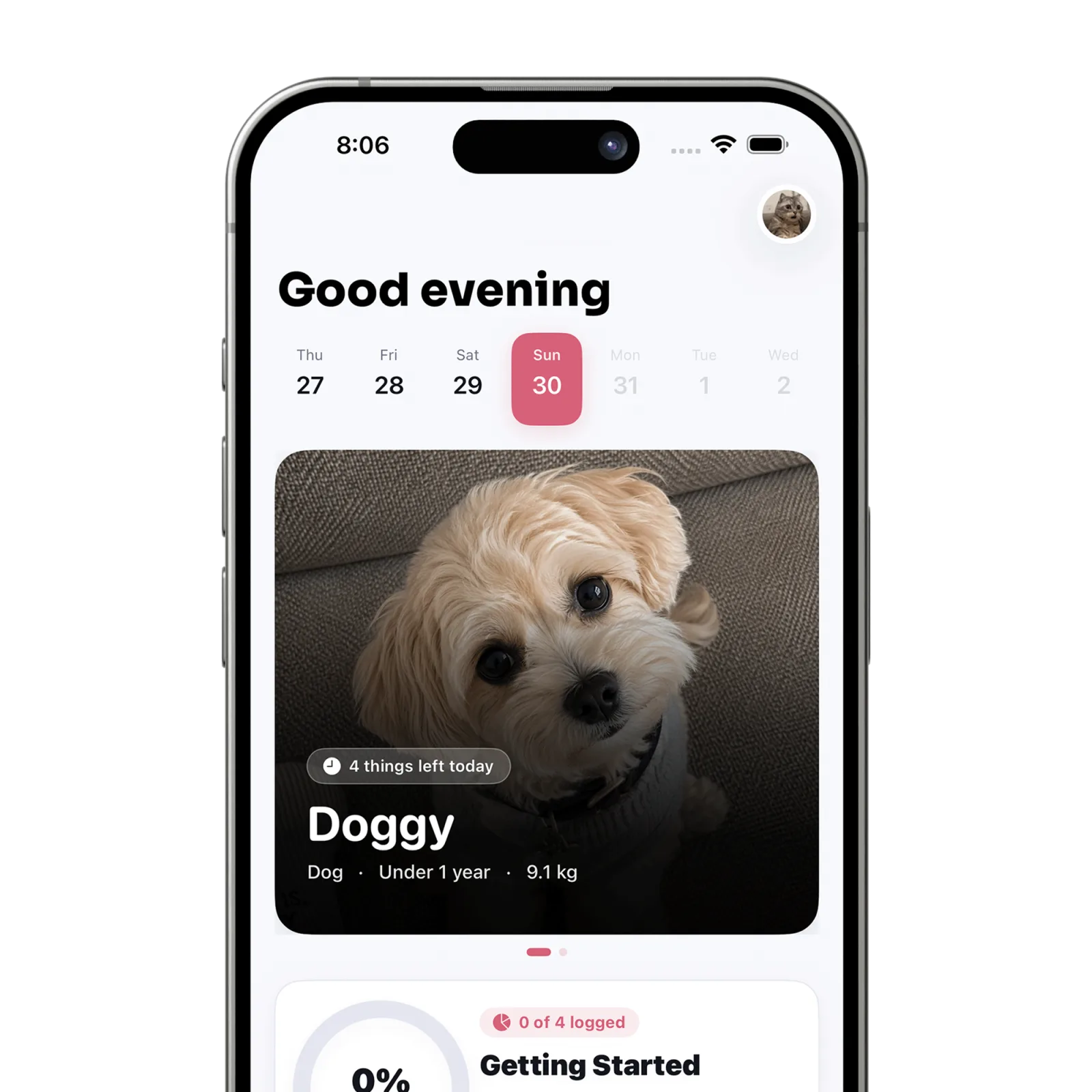
Create or sign in to your Petive account when prompted. After setup, Petive opens the Today tab with the new pet selected.
What happens next
The pet appears on Today and Pets. Their chosen activities form the daily care plan and can be logged immediately.
Good to know
- Petive Free supports one pet. Petive VIP supports up to three pets.
- Petive is built for iPhone; Android is not currently supported.
Troubleshooting
You meant to join someone else’s care team
Go back and choose “Join a Care Team,” then enter the invite code or scan the QR pass.
Setup will not continue
Check that required fields contain a valid value and that your iPhone has a connection for account creation.