
Everyday routine
Log feeding, walks, medication, and other care
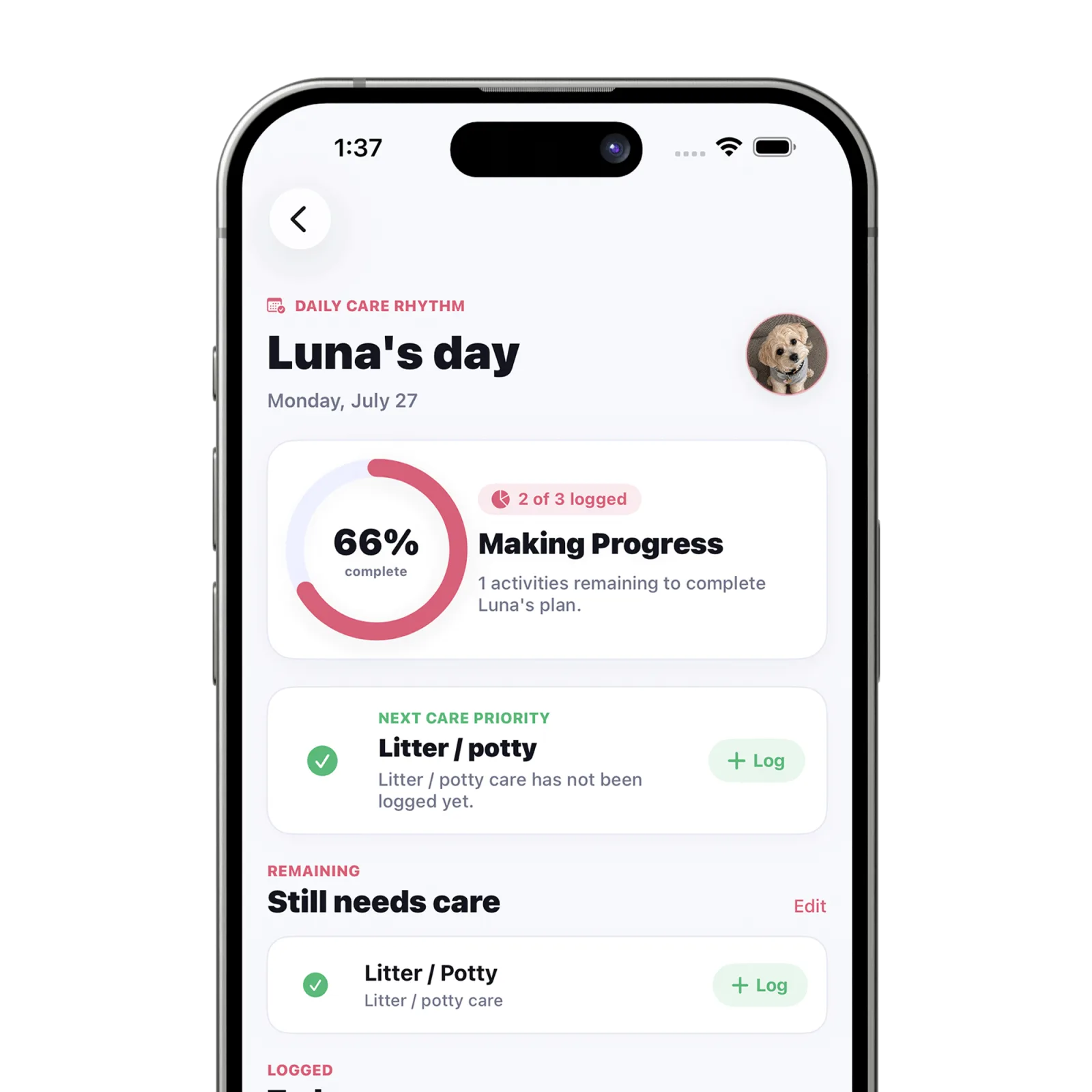
Open Today or Timeline, use the add control, choose the care activity, add any useful details, and save. The entry appears in the timeline and updates daily progress.
Steps
Select the right pet
If your plan includes more than one pet, confirm the intended pet before logging. The active pet is visible on Today.
Open the care actions
From Today or Timeline, tap the add control to reveal the available care activities.
Choose the activity
Select meals, water, walks, medication, grooming, vet visits, playtime, litter or potty care, weight, or a note.
Add useful context
Complete the fields shown for that activity. Keep health or medication notes factual and follow written veterinary instructions; Petive does not calculate doses.
Save the entry
Save to add the event to the chronological timeline. Petive also updates that pet’s Today progress when the activity belongs to the daily plan.
What happens next
The new entry appears in Timeline with its pet, activity, time, and caregiver attribution when applicable.
Good to know
- Symptoms and behavior are not dedicated activity types; they can be recorded as notes or general observations.
- Care records are caregiver-entered and are not passive medical monitoring.
Troubleshooting
The wrong pet is active
Close the entry sheet, switch to the correct pet, then open the care action again.