
Keep details organized
Create an Apple Wallet Pet ID
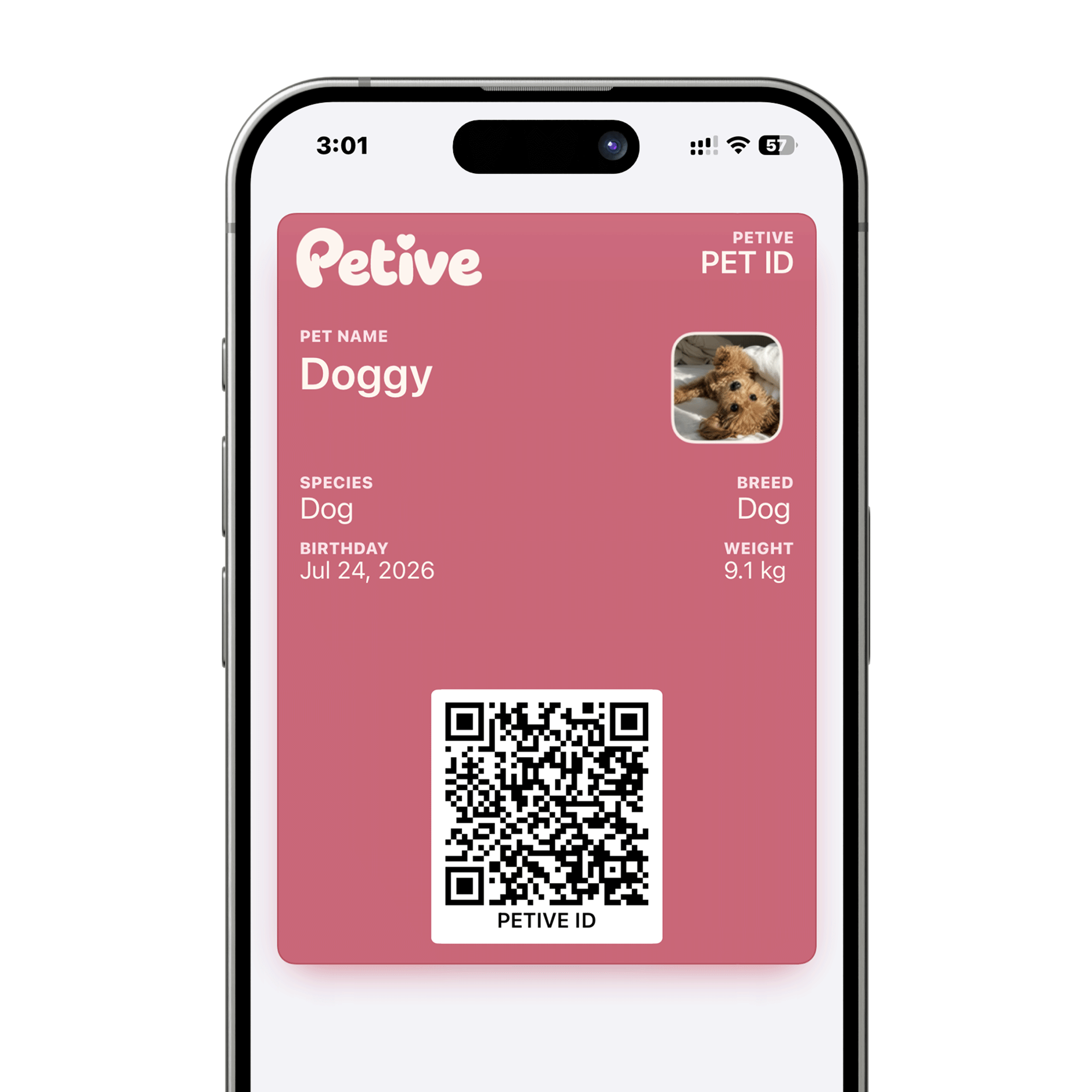
Open the pet profile, choose Apple Wallet Pet ID, then create and add the signed pass. After profile changes, return to refresh the Wallet pass manually.
Before you start
- Petive VIP must be active.
- The pet needs a profile and photo for a useful pass.
- The household owner creates the Pet ID first.
Steps
Open the pet profile
Tap Pets, choose the intended pet, and open the profile details.
Choose Apple Wallet Pet ID
Open the Pet ID screen and review the profile preview and the “Manual updates · Not official ID” notice.
Create and add the pass
If you are the household owner, tap Create & Add to Apple Wallet and complete Apple’s add-pass flow. After owner activation, active care members can use Add to Apple Wallet.
Refresh after profile changes
When Petive shows that profile changes are ready, return to the Pet ID screen and choose Refresh Wallet Pass.
What happens next
Apple Wallet contains a signed Petive profile pass for the selected pet with its stable Petive QR.
Good to know
- The Wallet pass is a convenient owner-managed profile card, not official identification, proof of ownership, or a veterinary record.
- Updates are manual; changing the Petive profile does not silently replace the Wallet pass.
Troubleshooting
Owner Activation Required appears
Ask the Shared Pack owner to create the Pet ID first. Other active members can add it afterward.
Apple Wallet is unavailable
Confirm Apple Wallet is available on the device and that the iPhone is online, then try again.